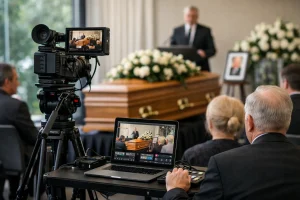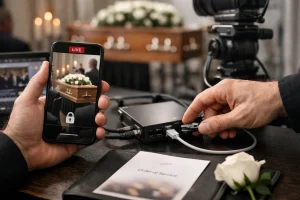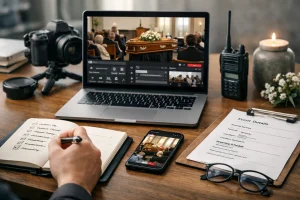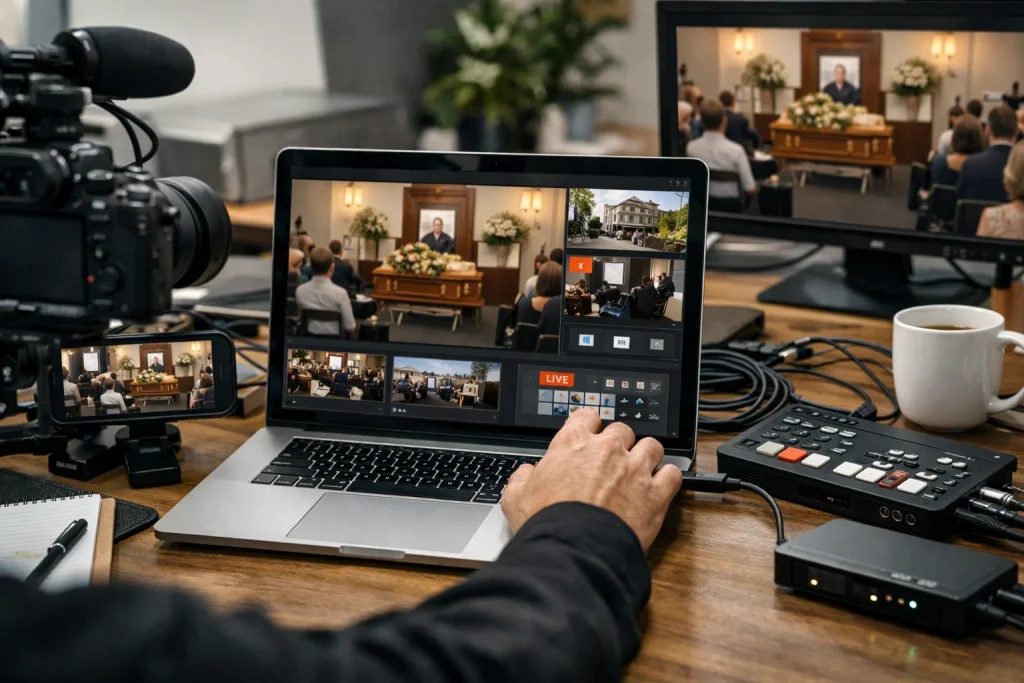
A quiet chapel fills. The front rows settle. Near the back, a phone on a tripod shows cousins in Perth, an aunt in Townsville, and a grandson waiting from London for the service to begin in real time. If you are working out how to livestream a funeral in Brisbane, that small screen is not a gadget. It is a seat in the room.
A funeral stream does not need to feel elaborate. It needs to feel steady, private, and respectful. Remote mourners should hear the eulogy clearly, see the lectern without distraction, and join without wrestling with a broken link five minutes before the first hymn.
The good news is that you can make this manageable. Once permissions, audio, internet, and backup plans are sorted before guests arrive, the live stream becomes far less stressful for everyone standing in the chapel — and everyone watching from somewhere else.
How to Livestream a Funeral in Brisbane: Prerequisites and Tools Before You Start
Confirm who has permission to stream the service
Watch This Helpful Video
To help you better understand how to livestream a funeral in Brisbane, we’ve included this informative video from livestreamco. It provides valuable insights and visual demonstrations that complement the written content.
Start with consent. Funeral livestreams should be approved by the family and the venue or officiant before the service begins. Do this early, not on the morning itself. A Brisbane chapel, church, crematorium, or memorial garden may each have different rules about camera placement, power access, and what parts of the ceremony can be shown.
Ask one person in the family to be the final decision-maker. Then confirm the venue contact and officiant. That avoids mixed instructions when emotions are high.
- Who gives the final approval for the stream?
- Will the service be live only, or live and recorded?
- Are there parts that must stay off camera, such as mourners in the pews or private family moments?
- Does the officiant allow streaming from inside the chapel and at the graveside?
List the gear you need for video, audio, and power
Keep the equipment list practical. Clear audio is usually more important than cinematic video for remote mourners to follow the service. A steady wide shot with clean sound beats a beautiful image with muffled words every time.
For a small service in Indooroopilly or a larger chapel near Mount Gravatt, this basic kit is enough for most single-camera setups:
| Item | Minimum Acceptable Option | Why It Matters |
|---|---|---|
| Camera | Recent smartphone or camera with HD output | A clear, stable image is easier for remote guests to follow. |
| Tripod | Full-height tripod with secure phone or camera mount | Prevents shaky footage and keeps the operator unobtrusive. |
| Microphone | External lavalier, shotgun mic, or venue audio feed | Voices stay intelligible, which matters more than sharp visuals. |
| Headphones | Any wired or wireless monitoring headphones | Lets you catch hum, echo, muted channels, or clipping early. |
| Power | Extension lead, charger, and charged battery bank | Reduces the chance of a sudden shutdown mid-service. |
| Streaming Device | Laptop, tablet, or phone running the streaming platform | Handles the broadcast and viewer access link. |
| Backup Internet | Second phone or dedicated hotspot | Gives you a fallback if venue Wi-Fi drops out. |
Rule of thumb: if the room sounds echoey to you, it will sound worse on the stream.
Check the venue’s internet and backup connection
Test the internet where the stream will actually run, not at the front desk and not in the car park. Signal in a brick chapel can be very different from signal 20 metres away outside. I have seen a strong 5G connection vanish once the camera moved to the rear pew.
A backup option, such as a second internet connection or mobile hotspot, can help if the primary connection fails. If possible, also record a local copy on the device itself. Then if Brisbane weather, venue Wi-Fi, or a network wobble ruins the live feed, the family still has a full version to share later.
- Test venue Wi-Fi in the exact camera spot.
- Test your hotspot in the same spot.
- Confirm all devices are fully charged.
- Keep power cables taped down and out of walkways.
Step 1: Confirm the Service Details and Streaming Permissions
Get the final time, location, and officiant run sheet
Before you touch a tripod, get the final schedule. You need the exact start time, arrival window, venue address, parking or loading details, and the officiant’s run sheet. That run sheet tells you when music starts, when speakers come forward, when the casket enters or leaves, and when you may need to adjust framing.
A service at 10:00 am in Brisbane often means family arrivals well before 9:30. Build your setup around the earlier time, not the published one.
Decide what can and cannot be filmed
Set boundaries with the family in plain language. Some want a full chapel view. Others want only the lectern, flowers, and front area. Some want the graveside included. Others want the live stream to end before the committal. Ask, write it down, and stick to it.
Also check whether any readings, music, or photos included in the service may need separate approval to stream. A slideshow with family photos, a recorded song, or a tribute video may affect what platform you can safely use and whether the replay should stay online.
Choose whether the stream will be public, unlisted, or password-protected
Privacy deserves a deliberate choice. Some families prefer private access for remote attendees rather than a public broadcast. That is often the right call for a funeral, especially when the link will be sent through a family email thread or WhatsApp group.
Make the access level part of the original approval, not a last-minute platform setting. It affects who can attend, how instructions are written, and how much moderation you may need.
Do not assume streaming is automatically allowed just because filming is allowed.
Step 2: Choose the Right Livestream Format and Platform
Decide between a single-camera or multi-camera setup
A single-camera setup is often simpler to manage for small, quiet services. If the ceremony will stay mostly at the lectern and front of chapel, one fixed camera from the rear centre can be enough. Less equipment means fewer failure points.
Multi-camera coverage can help capture the entrance, readings, and ceremony from different angles. But it also adds switching, cabling, extra batteries, and more room for operator error. When the moment cannot be repeated, simplicity usually wins.
| Option | Works Well When | Watch For |
|---|---|---|
| Single Fixed Camera | Small chapel, one lectern, limited movement | Less visual variety, so framing must be chosen carefully |
| Multi-Camera Setup | Larger service, processional entrance, multiple speakers | More setup time, more power needs, more technical risk |
Pick a platform that supports privacy controls
Choose the platform after you choose the privacy level. An unlisted or private link can reduce unwanted access compared with a fully public post. For many families, that matters more than fancy features.
Use a platform the viewers already understand. Zoom can work well for invitation-based attendance. An unlisted YouTube link can be easier for a larger group across Australia and overseas. A password-protected viewing page adds another layer of privacy, though it also adds one more step for guests.
| Access Type | Best For | Trade-Off |
|---|---|---|
| Public | Open community memorials | Least private; wider chance of unwanted viewers |
| Unlisted | Families sharing one link with many remote guests | Anyone with the link can forward it |
| Password-Protected | Sensitive or tightly controlled services | Guests need clear instructions before the service |
Set up the viewing link and access instructions
Once the platform is chosen, create the link early and test it. Then send simple access instructions in Brisbane time, not vague wording like “mid-morning.” Remote guests may be joining from New Zealand, Singapore, or the UK. AEST matters.
- Send the live link, password if needed, and exact start time.
- Tell guests to join 10 minutes early.
- Include a contact person for access issues.
- Mention whether the service will remain available afterward.
Simplicity beats complexity when the event cannot be repeated.
Step 3: Prepare the Venue for Sound, Lighting, and Internet
Test where the camera can sit without blocking guests
The best camera position is usually the one nobody notices. In most chapels, that means the back centre or back side, high enough to see the lectern and front area, but not in a main aisle where late arrivals and family movement will constantly cross the frame.
Walk the room before guests enter. Check sightlines from seated eye level. If your tripod would annoy someone in the third row, move it now rather than during the service.
Place microphones where voices will be clear
A microphone placed too far from the speaker can make a service hard to hear, even if the video looks sharp. If the venue has an audio system, ask whether you can take a clean feed from the lectern or mixer. If not, place an external microphone as close as practical to the speaking position.
For a simple setup, a lavalier mic near the lectern or a shotgun mic aimed at the front can make a dramatic difference. Always monitor with headphones. Your ears will tell you more than the level meter.
Check lighting and signal strength in the exact filming spot
Natural light, front-facing ambient light, and minimal backlighting make faces easier to see on camera. If a bright window sits behind the officiant, the camera may turn the speaker into a silhouette. Shift the angle a little. Close a blind if the venue allows it. Tiny fixes help.
A stable internet connection should be tested in the same part of the venue where the stream will run. Do not assume the signal near reception matches the signal beside the last pew.
Test the room, not just the equipment.
Step 4: Rehearse the Livestream From Start to Finish
Do a private test stream or dry run

A rehearsal can catch issues like dead batteries, feedback, poor framing, and muted microphones before the service begins. Even a 10-minute dry run is better than none. A full private test the day before is better still.
Use the real platform, the real internet connection, and the real camera position. If your camera will be at the back of the chapel on Saturday, test from the back of the chapel on Friday. That is where the surprises live.
Walk through the ceremony cues and transitions
Take the officiant’s run sheet and mark the moments that affect the stream: opening music, welcome, reading one, eulogy, slideshow, prayers, moments of silence, closing music, and departure. Ceremony cues such as music, readings, and pauses should be marked clearly in the run sheet.
If the service moves from chapel to graveside, note exactly when the first stream ends and whether a second stream begins. Ambiguity here causes messy handovers.
Check what remote viewers will see and hear
The stream should be checked from the viewer’s side, not only from the camera operator’s screen. Open the link on a second device using a different connection if possible — for example, one phone on Wi-Fi and another on mobile data. Listen for echo. Read the on-screen title. Confirm the volume is usable without maxing out the device.
If you can, ask one person outside the venue to join the test and report back. A cousin in Adelaide or a colleague across town can spot problems you will miss from behind the tripod.
If you do only one rehearsal, make it a full run from opening to close.
Step 5: Go Live and Manage the Stream With Care
Start early and confirm the feed is stable
Starting the stream early helps remote guests join before the ceremony begins. I prefer a 10 to 15 minute cushion. That gives people time to click the link, adjust volume, and settle without missing the welcome.
Before guests fill the room, check three things one last time: the stream is live, audio is moving, and the frame is exactly where you want it. Then stop fiddling.
Monitor audio, framing, and battery life quietly
Your job during the service is to stay small. Monitor with headphones at low visibility. Dim bright screens. Silence every notification. Keep chargers secure. A second operator can help monitor the feed while the camera stays fixed on the service, but if you are working alone, choose the simplest stable framing and avoid unnecessary camera moves.
Battery checks and power backup reduce the risk of the stream ending unexpectedly. That includes the phone, camera, hotspot, and laptop — not just one of them.
Keep a backup plan ready if the connection drops
Even well-prepared setups can fail. A backup plan should already exist before the first reading. If the primary connection drops, switch to the hotspot. If the platform fails, keep recording locally. If viewers lose access, have one family contact ready to resend the correct link or brief update.
Do not troubleshoot loudly in the room. Fix what you can, fast and quietly, and keep the service itself undisturbed.
Your job is to be invisible once the service starts.
Common Mistakes to Avoid
Not testing audio before guests arrive
Untested microphones and poor room acoustics are among the most common reasons a livestream feels unprofessional. The classic failure is simple: the picture looks fine, but the speaker sounds distant because the only microphone is built into a phone three metres away.
Test speech, not just ambient sound. Ask someone to stand at the lectern and read a paragraph at normal volume. Then listen back on another device.
Blocking the view or moving the camera mid-service
A camera placed in a high-traffic aisle can distract mourners and disrupt the service. So can an operator stepping forward for a “better angle” during a eulogy. Pick a respectful position before the doors open and stay with it.
A fixed frame is usually the right choice. Slow, necessary adjustments are fine. Constant panning is not.
Forgetting privacy, consent, or access instructions
Remote guests need simple access instructions in advance so they are not troubleshooting during the ceremony. Send the link the day before, send it again a few hours before, and state clearly whether the stream is public, unlisted, or password-protected.
Also confirm consent one last time if any service elements change. A family that approved chapel coverage may not want graveside footage or close-ups of mourners later.
- Send the correct link and password together.
- Include the start time in AEST.
- Name one contact person for technical help.
- Tell viewers whether a replay will be available.
- Keep a written checklist and tick it off on site.
If something could be handled by a checklist, handle it with a checklist.
A good stream feels almost invisible: distant family hear every reading, see the farewell clearly, and never wrestle with access.
That is what how to livestream a funeral in Brisbane really comes down to — permission, clear audio, simple framing, private access, and a backup plan ready before the first guest arrives.
When the date is set, which part feels hardest right now: privacy, sound, the internet connection, or having steady support behind the camera?
Quiet Support From Livestream Company
Local Brisbane crew with fast setup and on-site support helps families and organisations share funerals, weddings, and events clearly with remote guests across Queensland.