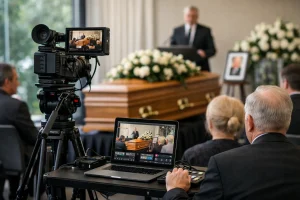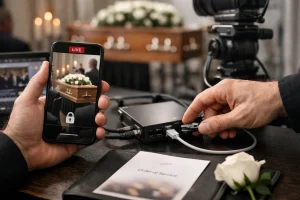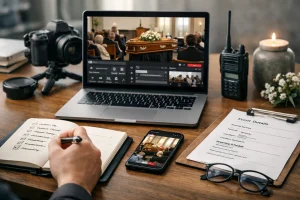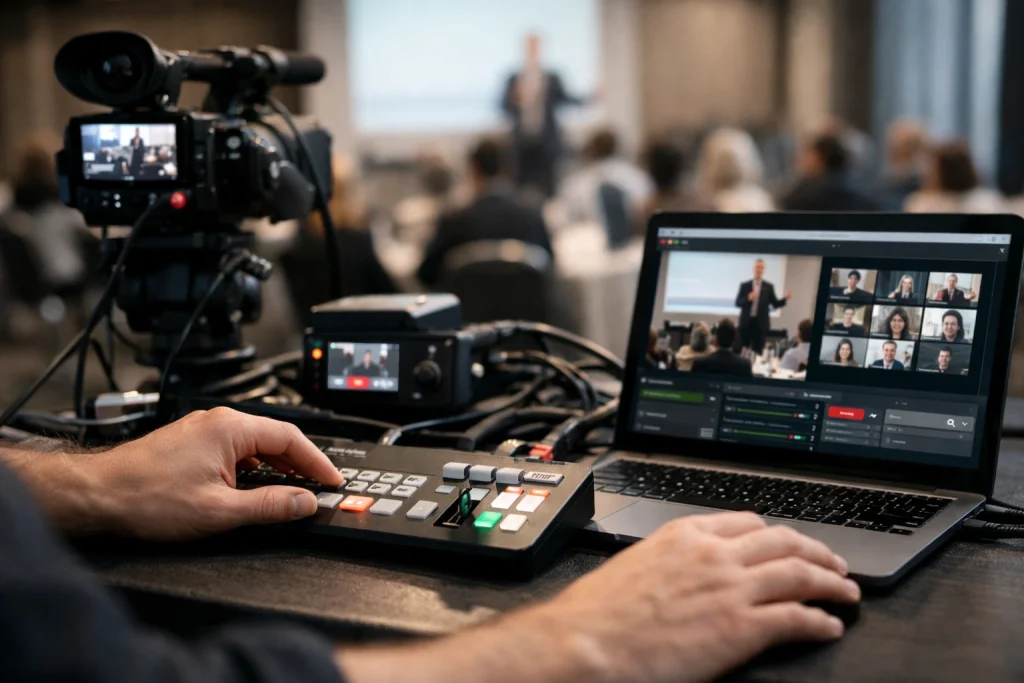
At the back of the room, a technician watches the audio meters climb while the keynote speaker steps to the lectern. One monitor shows the stage feed. Another shows remote attendees waiting for the session to start.
That moment is where the real question lands: can you livestream a conference to YouTube and Zoom? Yes — and for many events, it is a clean way to serve two different audiences at once. One channel can work as the broader broadcast. Another can work as the room where people ask questions, join panels, or speak back.
The appeal is practical, not trendy. People want access, even when they cannot get to the venue by 9:00 a.m.
Can you livestream a conference to YouTube and Zoom?
The short answer: yes, with the right setup
Watch This Helpful Video
To help you better understand can you livestream a conference to YouTube and Zoom, we’ve included this informative video from Justin Brown – Primal Video. It provides valuable insights and visual demonstrations that complement the written content.
Yes. You can send one event to both platforms at the same time if you build it around a single, reliable source feed. That usually means your cameras, slides, and microphones are mixed into one program output, then distributed so each platform handles a different job.
If you try to treat them as identical destinations, things get messy fast. If you treat them as complementary, the workflow gets simpler.
That matters because live streaming is not just a matter of clicking a button. The planning load sits right alongside speakers, venue timing, registration, and audience expectations.
Public viewers vs invited participants
Most live events have two remote groups.
- People who just need to watch — staff, clients, industry peers, family members, or the general public.
- People who need to interact — panellists, sponsors, workshop attendees, moderators, or registered guests with Q&A access.
One platform usually fits the first group better. The link is easy to open on a phone, laptop, or smart TV. Another platform usually fits the second. You can control who enters, who speaks, who chats, and who gets promoted on screen.
Why events often use two channels
Because one room rarely serves everyone well.
A broad keynote can go to a public stream without friction, while a smaller invited discussion can stay active inside Zoom. Even when both platforms carry the same live program, the audience experience is different by design. That split reduces confusion for viewers and pressure on your event team.
One channel is the stage; the other is the front row.
In practice, this means you can stream the same opening address to both platforms at 10:00 a.m., then invite remote attendees into discussion while viewers continue as observers. One show. Two levels of access.
What does that setup actually mean?
One platform for broad viewing
One platform is usually better built for reach. It is often the better home for keynotes, opening sessions, award presentations, and any segment where you expect a larger or less technical audience. You send out one link. People click. They watch.
That simplicity matters. Live streaming is not as simple as pressing “Go live.” The more people you invite, the more valuable simple access becomes. A casual viewer in Brisbane, a partner in Auckland, and a colleague in a Melbourne airport lounge all need the easiest possible entry point.
Another platform for questions, discussion, and remote participation
Another platform is better when interaction is part of the event, not just a bonus. You can admit speakers, mute background noise, manage questions, and keep a tighter grip on who is in the session. That makes it a strong fit for panels, member-only briefings, workshops, and sponsor roundtables.
It also gives remote attendees a stronger sense that they are “in” the event, not just watching it from outside. If your moderator is actively pulling questions from chat or inviting remote panellists on screen, that platform becomes more than a backup link. It becomes a participation layer.
One event, two audience experiences
The cleanest answer is usually not two separate shows — it’s one show with two access levels.
| Platform | Best Use | Audience Style | Control Level |
|---|---|---|---|
| Broad stream | Keynotes, broad access, replay-friendly sessions | Lean-back viewing | Lower |
| Interactive platform | Q&A, workshops, invited guests, remote speakers | Active participation | Higher |
This distinction helps you plan clearly. Instead of asking, “Where do we stream?” you ask, “Who needs to do what?” That is the better production question.
The cleanest answer is usually not two separate shows — it’s one show with two access levels.
And yes, that extra layer adds complexity. Once streaming enters the plan, you are juggling venue, speakers, audience needs, and technical delivery all at once.
Why does it matter?
Reach people who cannot attend in person
The obvious benefit is reach. Travel costs, family responsibilities, illness, work deadlines, and simple geography keep people away from good events every week. Streaming closes that gap.
For a live event, that might mean a speaker joining from Sydney, a client watching from Singapore, or an employee tuning in from a home office in Logan. For a family event or memorial, the reason can be more personal and far more urgent. The principle stays the same: if the moment matters, distance should not automatically exclude people.
Keep remote attendees engaged in real time
Watching is one thing. Feeling included is another.
One platform gives you scale, but the other gives you live participation. A moderator can collect questions, guide discussion, and bring remote guests into the conversation while the in-room audience keeps moving. That is why live streaming is often described as one of the best ways to boost engagement, not just increase attendance numbers.
When this is done well, remote attendees stop feeling like afterthoughts. They become part of the rhythm of the event.
Add redundancy to a high-stakes event
Here is the less glamorous reason dual-platform streaming matters: resilience.
Technical glitches and last-minute changes are common live-streaming problems. A speaker arrives late. A laptop resolution changes. A venue network drops for 90 seconds. A registration email lands in spam. None of that is rare. If one channel stumbles, having a second path for viewers can save the session.
If the event matters, build in a second path for viewers.
This is not a promise that nothing will ever go wrong. It is a way to avoid a single point of failure. For a high-stakes AGM, leadership update, academic symposium, or sponsor-backed launch, that extra margin is worth having.
How does it work?
Capture strong audio and video first
Start with the source, not the platform. If the source feed is weak, sending it to two destinations only spreads the problem faster.
Audio comes first. Always. A slightly soft camera shot is forgivable. Harsh, echoing, or missing speech is not. For a typical event room, you usually want a direct feed from the microphones, a controlled mix from the room audio system, and sometimes a touch of room sound so applause does not vanish completely.
Then build your picture. One camera can work for a simple seminar. Two or three cameras are far better for a keynote with slides, audience reaction, or a panel. Add a direct slide feed if the presentation includes charts, product demos, or small text.
Send the same feed to both destinations
Once you have a clean program output, distribute that same feed to each platform. Do not create two separate mini-productions unless you have a very unusual reason to do so.
- Mix cameras, slides, and audio into one master program feed.
- Send that feed to the first platform using an encoder or switcher that supports live publishing.
- Feed the same program into the second platform through a dedicated computer or another method your account and tools support.
- Check that each platform has picture, sound, titles, and the correct privacy settings.
Some setups handle both destinations from one production system. Others use a second machine for the interactive room. Either can work well. The real goal is consistency.
One stable feed beats two shaky ones.
If you have ever seen a stream where one audience hears clean audio but the other hears laptop echo, you have seen what happens when the feeds drift apart.
Assign someone to monitor chat, playback, and issues
Never assume the outgoing feed is fine because the switcher says it is live. Someone needs to watch both outputs like a hawk.
That means one person checking playback, another keeping an eye on admission, chat, participant audio, and raised hands — or, for a smaller event, at least one dedicated operator with both windows open and headphones on. This role catches the quiet problems: muted microphones, screen-share mistakes, wrong lower thirds, chat questions piling up, or a dead battery on the handheld mic at 11:17 a.m.
Successful event streaming requires planning and coordination beyond the click of “Go live.” Rehearsal is what makes the live part look calm.
What should you check before going live?
Internet, power, and backup options
Most streaming failures begin before the audience joins. They start with assumptions.
Assuming the venue Wi-Fi will be enough. Assuming the lectern power board has spare outlets. Assuming the spare HDMI cable is actually in the case. Test upload speed on site. Use wired internet if you can. Bring power backup, spare cables, extra batteries, and a second connection option such as mobile data.
If the event is critical, record locally as well as streaming live. If the feed drops, you still have the session.
Permissions, run sheets, and speaker approvals
Not every failure is technical. Some are administrative.
Confirm speaker names, slide versions, video playback permissions, music use, and whether the stream should be open, unlisted, or limited. Make sure moderators know who can speak and when. A run sheet with exact times beats a last-minute text message every time.
Also check platform access and plan limits before event week. Integrations can be tier-dependent. Do not discover account restrictions five minutes before doors open.
Rehearsal timing for slides, microphones, and camera angles
Run the exact workflow, not a watered-down version.
Test the speaker laptop that will actually be used. Test the microphone that will actually be clipped on. Test the walk-on, the opening slide, the remote Q&A handoff, the panel seat changes, and the closing remarks. A fast fifteen-minute rehearsal catches more problems than an hour of guesswork.
Test the exact event workflow, not just the equipment.
| Pre-Flight Check | What to Verify | Backup to Have Ready |
|---|---|---|
| Internet | Stable upload, wired connection, access credentials | 4G or 5G hotspot, second network path |
| Power | Enough outlets, charger locations, cable runs | Power board, extension lead, charged batteries |
| Audio | Mic levels, mixer feed, no echo in the room | Spare mic, spare cable, local recording |
| Slides and Video | Correct deck, aspect ratio, playback rights | PDF backup, second laptop, HDMI adapter |
| Platforms | Correct links, privacy settings, host permissions | Alternate host login, printed run sheet |
What are the common questions?
Can both platforms run at the same time?
Yes. That is the standard goal for this kind of setup.
You can run both at once if your workflow supports a stable shared feed and your team has enough visibility into both outputs. For many events, that means one channel carries the public-facing stream while the other hosts the invited or interactive group at the same moment.
Just remember that platform features can vary by account tier or hosting plan. If your event depends on a specific integration, verify it before you announce the access method.
Do I need separate hosts or moderators?
For a small seminar, maybe not. For a conference, usually yes.
The minimum clean setup is often:
- one technical operator watching the outgoing feed,
- one moderator handling participants and questions,
- and one event lead or stage manager keeping the run sheet on track.
Could one person cover two of those roles in a 20-person briefing? Sure. Should one person run all of them during a keynote with sponsors, remote panellists, and audience questions? Usually not.
Can the same setup work for weddings, funerals, and seminars?
Yes, the same basic logic works across many live events: one strong source feed, the right platform for the audience, and clear moderation.
The difference is tone and access. A wedding might suit a private link plus a controlled replay for relatives overseas. A funeral or memorial often calls for a more discreet approach, such as a private link or a tightly managed viewing room. A seminar may mirror the live-event model almost exactly.
Choose one audience first, then let the second platform support it.
If you start there, the technical choices become much easier. You are no longer picking tools in the abstract. You are designing the right seat for each remote guest.
Yes — you can livestream a live event, and the safest version is one strong program feed with each platform playing a clear role.
When one channel serves the broader audience and the other serves the active participants, the event feels calmer, cleaner, and easier to manage. Rehearse the real workflow, protect audio first, and watch both outputs closely.
So if you are still asking can you livestream a conference to YouTube and Zoom, what would change for your event if every remote guest had the right seat instead of just a link?
Brisbane Broadcast Support From Livestream Company
Local Brisbane-based crew with fast setup and on-site support helps families and organisations share weddings, funerals, and live events with remote attendees across Brisbane and nearby regions.